THE SYSTEM / BUILT AROUND YOUR EQUIPMENT

A working record.
For every working day.

Tank and regulator tracking, from the first scan to the final return. Clear records on Android, with the freedom to keep working offline.

Follow the workflow ↓

01 / KNOW THE FLEET

Every item has a record.
Every record has a purpose.

Use barcodes or manual search to get from the equipment in front of you to the information entered for it.

SCUBA CYLINDERS

Inspection dates. Identity. Status.

Keep tank ID, barcode, serial number, material, size, gas content, visual inspection and hydro dates, hydro interval, location and notes together. User-defined hydro intervals let your operation record the requirements that apply to its equipment.
REGULATOR SETS

Keep the components connected.

Record regulator identity, first-stage serial number, primary and secondary regulator details, service information, location and notes. Give each set a traceable identity within the shared equipment pool.

OPERATIONAL STATUS

Make the next action visible.

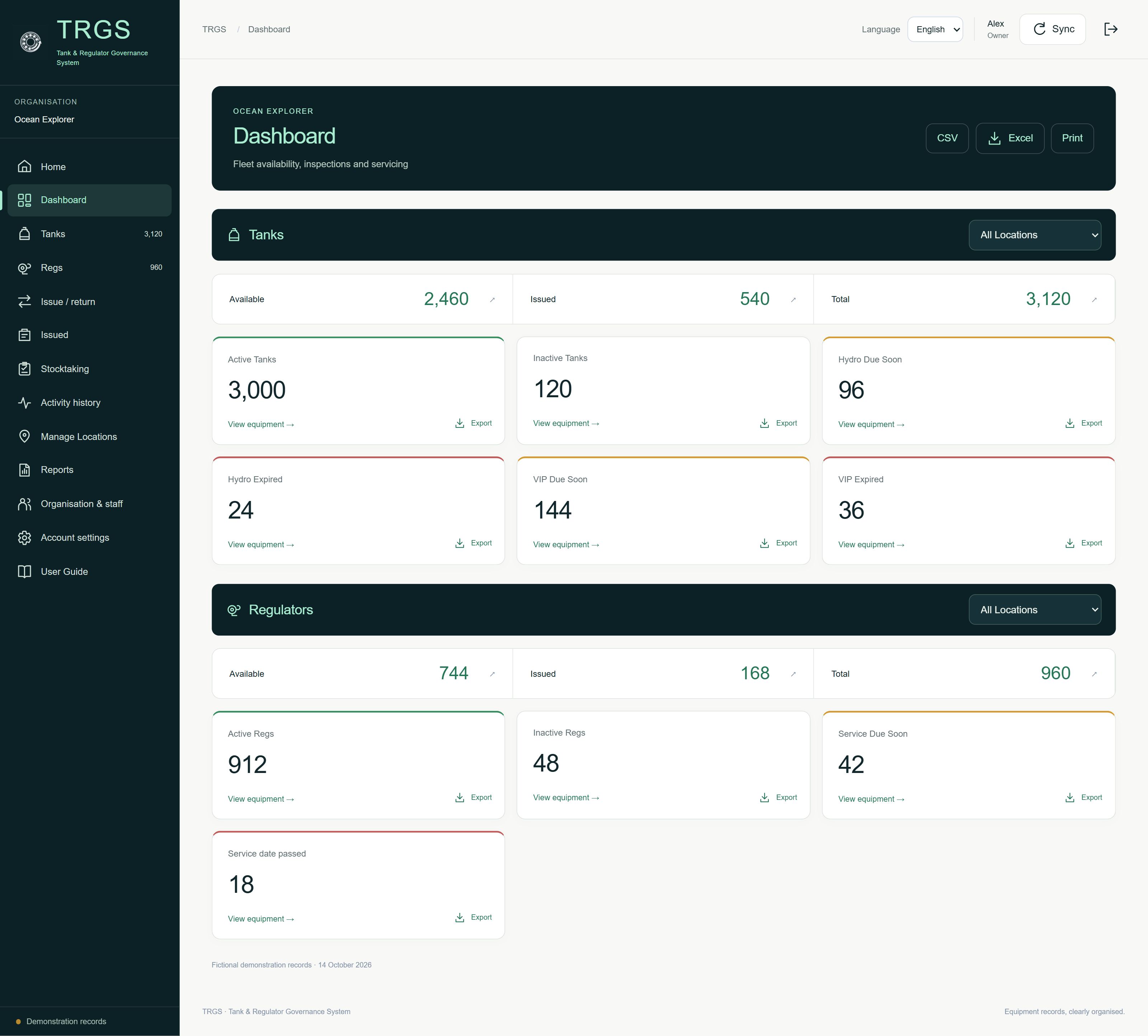
Distinguish Active, Inactive and Approved to Quarantine records. Use the dashboard to review approaching dates within the current 30-day window and entered dates that are overdue.

TRGS records the information and decisions your team enters. Inspection intervals, physical condition and operational readiness remain the responsibility of competent personnel. Read the operational disclosures ↗

IDENTIFY IT AT THE POINT OF WORK

One scan.
A useful starting point.

Open a record with a barcode or QR-format identifier, or search manually by the recorded details. Use physical tags suited to your working environment; tags are supplied separately by your chosen provider.

Check the displayed record against the actual item, then review the relevant dates, status and notes.

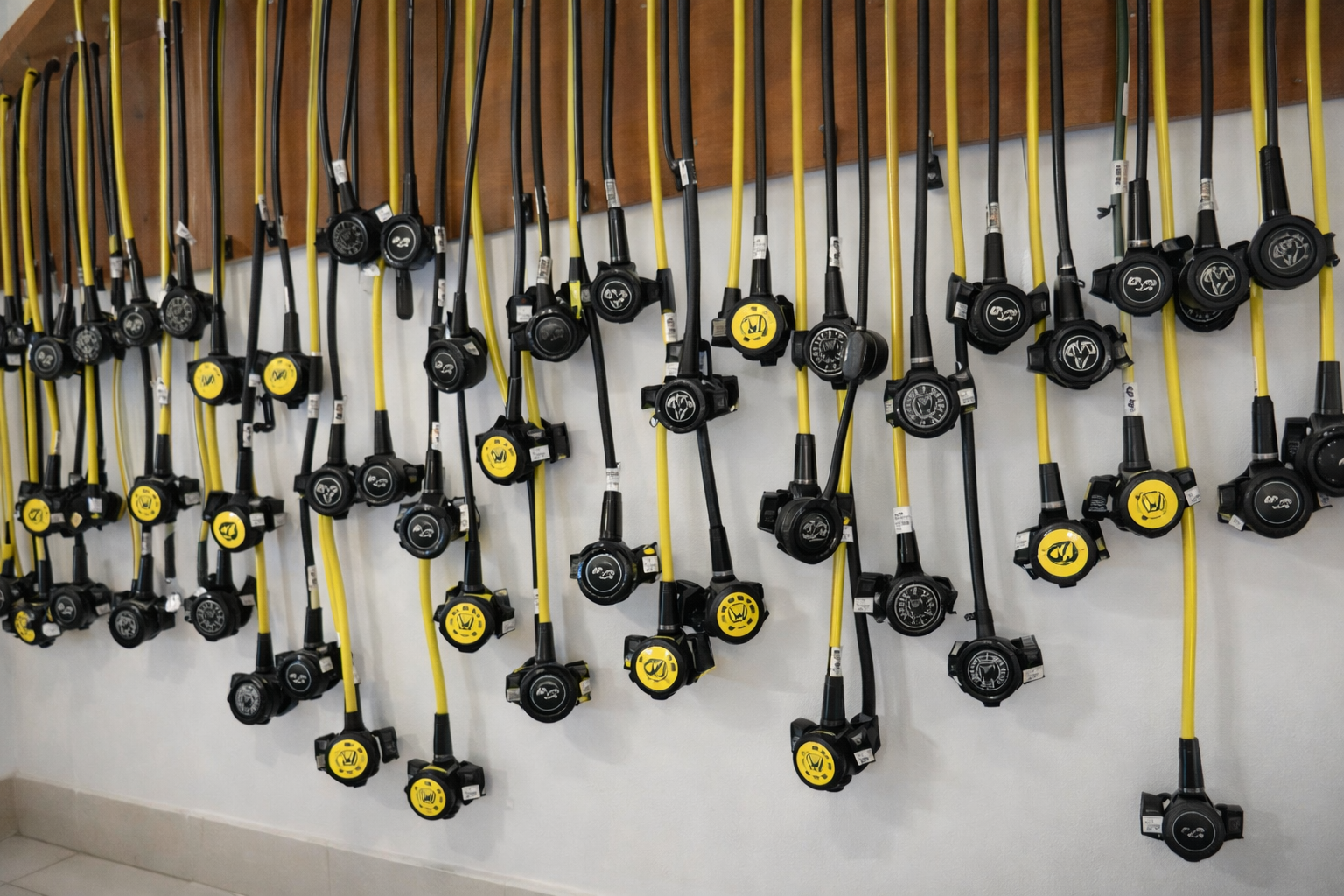
Individually identified regulator sets arranged in an equipment store
Tanks and regulators, organised around individual records.

02 / CONTROL THE HANDOVER

Issue the batch.
Close the return.

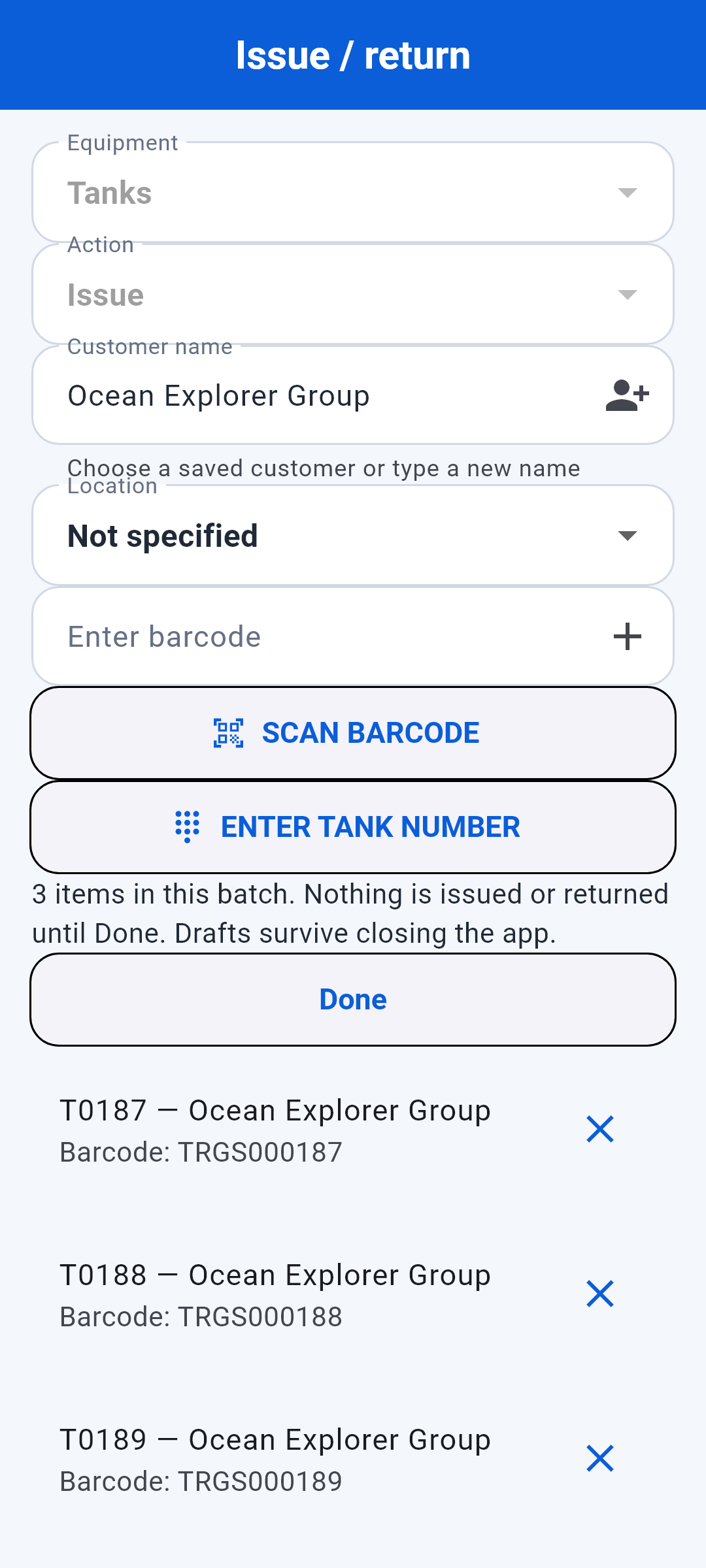
Collect a batch of tanks or regulators, associate an issue with a customer, and review it before confirming with Done. Saved drafts let staff resume work that has not yet been confirmed.

  1. Identify the equipmentScan the barcodes or enter identifiers for the items being handled.
  2. Review and confirmCheck the batch and customer details before recording the movement.
  3. Follow what is outstandingReview issued equipment grouped by customer and record returned items.

Equipment circulation changes when the batch is confirmed. A draft is work in progress.

Actual TRGS phone issue draft with T0187, T0188 and T0189 for the fictional Ocean Explorer Group
Actual TRGS interfaces · fictional demonstration records
Open full size ↗
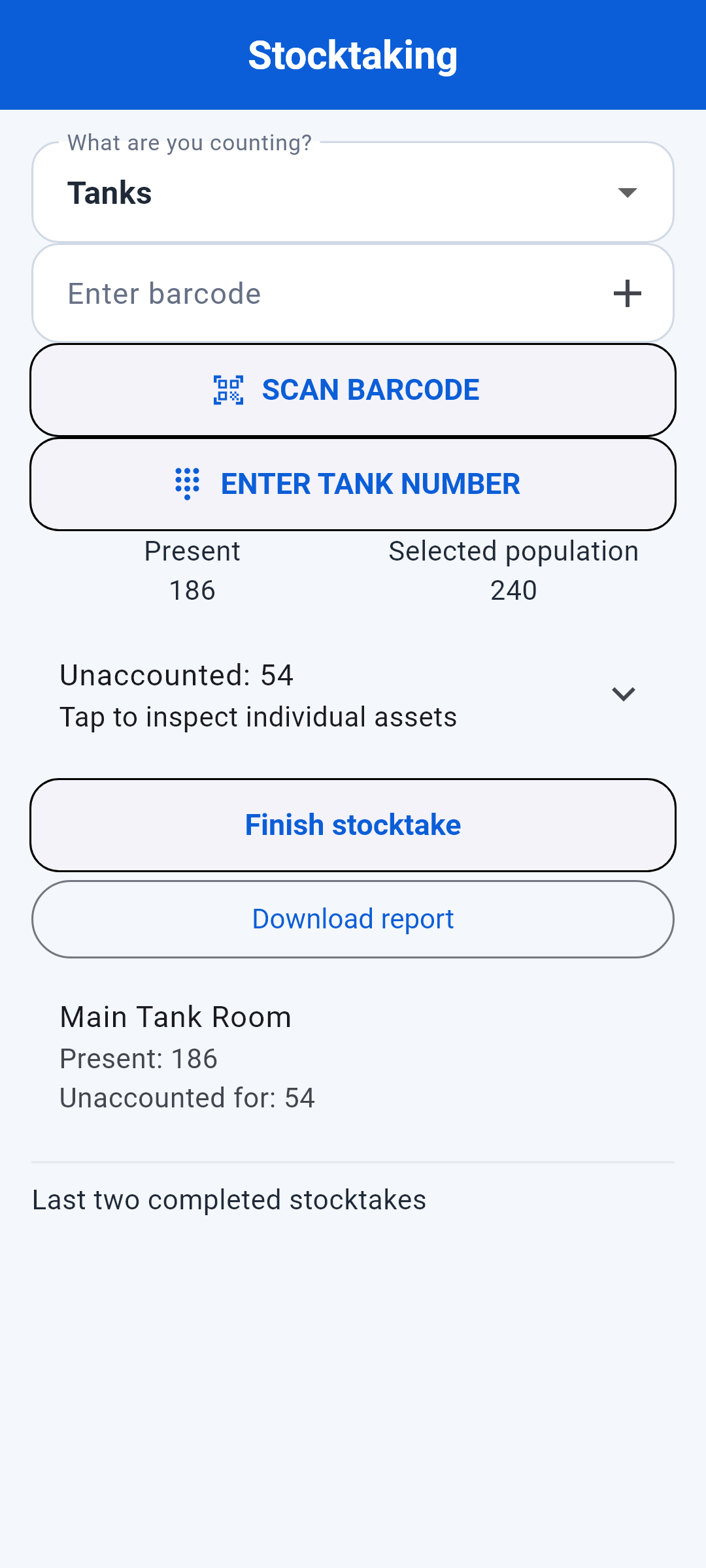
TRGS stocktaking screen showing a fictional count of 186 from 240

Actual TRGS interface · fictional demonstration records

03 / RECONCILE THE PHYSICAL FLEET

Count what is here.
Review what is missing from the count.

Run a stocktake for tanks or regulators against the selected equipment population. Scan the items present, review the results and finish with a report.

  • See present and unaccounted-for quantities.
  • Review duplicate scans and items outside the selected population.
  • Investigate discrepancies involving issued equipment.
  • Download the stocktake report as a CSV file.

“Unaccounted for” means an item has not been counted. Investigate its location and circulation record before treating it as lost.

04 / WORK WHERE THE EQUIPMENT IS

Offline at the point of work.
Shared after synchronisation.

Boat decks, remote bases and equipment rooms do not always have a reliable connection. The working record stays with your authorised Android device.

Local work supports operations away from a reliable signal.

Keep the working day moving.

Create, review and update equipment records locally. Use issue and return, stocktaking and exports while offline. Pending changes remain available for a later sync attempt.

Bring the team up to date.

When connected, synchronise saved changes with the operational workspace. Other authorised devices receive updates after successful synchronisation. Review any conflicts that need attention.

Online activity-history searches require a connection. Records that never successfully sync may remain only on the original device.

LOCATIONS

Main base. Beach store. Boat.

Use Quick Move or bulk movement workflows to update the latest recorded location of equipment. Shared location updates become visible after successful sync. Location records are entered by staff; TRGS does not physically locate equipment with GPS.

AUTHORISED STAFF

Individual sign-ins. Shared work.

Approved staff work in the operation’s shared workspace with their own sign-ins. The operation controls who has access and removes it when roles change. Device biometric access is available where supported and enabled.

05 / TAKE THE RECORDS FURTHER

Ready for the review.

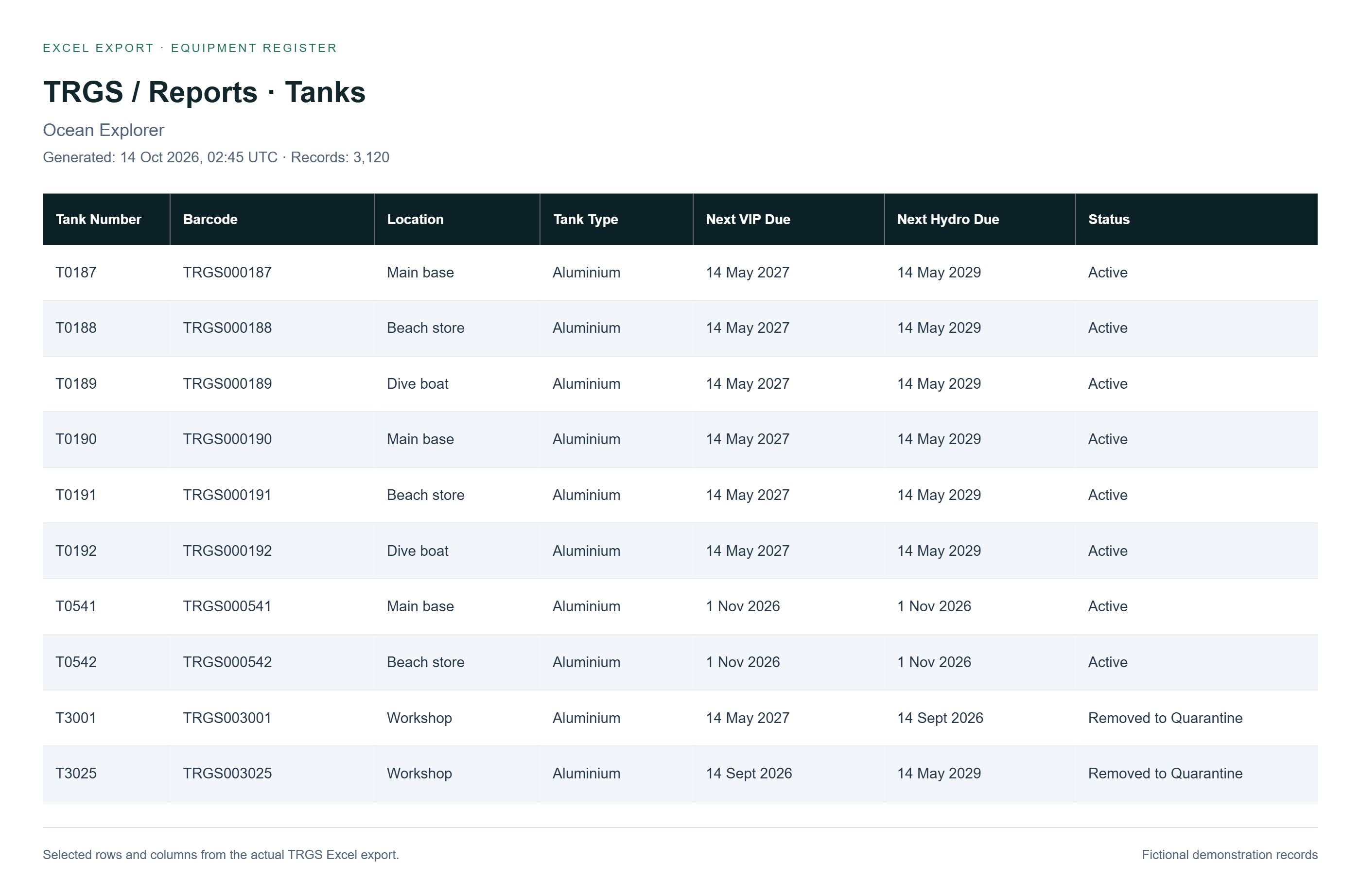
Export tank and regulator lists as Excel workbooks. Export stocktake results as CSV. Review identifiers, dates, statuses and recorded locations outside the app, and share files using the services your operation chooses.

Exports reflect the records available when they are generated. Synchronise relevant devices and check the report before sharing it.

Ask about records and reports ↗
Actual TRGS export data: tank identifiers, barcodes, recorded locations, upcoming VIP and hydro dates, and Active or Removed to Quarantine statuses. Fictional demonstration records.
Selected rows and columns from the TRGS Excel export. Fictional demonstration records.
Open report full size ↗

06 / GET STARTED

A practical route
from download to working fleet.

US$9.99 per month or US$99 per year. Download for Android through Google Play.

01 / ACTIVATE

Set up your operation.

Install TRGS from Google Play. A principal authorised user activates a subscription and creates the operational account, unless separately authorised access applies.

02 / REGISTER

Build a reliable starting record.

Add your equipment, identifiers, locations and relevant dates. Check the entries against physical tags and supporting inspection or service documents.

03 / SHARE

Bring approved staff into the workflow.

Give authorised staff access, agree how your operation confirms equipment movements, and make synchronisation part of the working routine.

Keep the supporting evidence.

TRGS supports equipment records and operational oversight. Keep required inspection certificates, workshop documentation and long-term history alongside suitable exports. The app does not certify equipment or replace technical assessment.

Understand the operating boundaries ↗